
Smartplant Instrumentation (formerly known as Intools) requires license like any other software. During execution of a project, the number of licenses used within a project may vary from only one license up to tens of licenses. If cost becomes major concern and the budget is limited, the number of licenses could be reduced by the following tricks. However this trick is only applicable for data sheet work which is prepared by more than one Instrument engineer. This trick could not be applied to other works such as wiring, loop, hook-up.
This procedure needs Intools External Editor, a freeware that can be downloaded in Integraph website. Please note that the version of Intools External Editor shall be compatible with that of Smartplant Instrumentation.
One engineer will be assigned as the Intools operator for exporting the blank specification sheet, the other Instrument engineers shall fill in the specification sheet (data sheet) using Intools External Editor without using Intools software. Once it is completed, the Intools operator shall import it back to Intools.
The following is the procedure of this work:
Exporting specification sheet (creating .isf files) – by Intools operator

Filling detail data in specification sheet using Intools – by Instrument engineer


Importing specification sheet – by Intools operator

Summary: This method allows the progress of data sheet preparation work to be faster even if only one license is available. Instead of using Intools with many licences, by using one license only, the Intools operator does export and import the files to be filled by multiple Instrument engineers using Intools external editor.
Showing posts with label Specification Module. Show all posts
Showing posts with label Specification Module. Show all posts
Friday, December 17, 2010
Data Sheet Works in Intools with Limitied Number or License
Friday, May 29, 2009
Batch Print of Intools Specification Sheets
When instrument engineer working in a project, instrument specification sheet should always be printed as pdf file on every revision to record the history of changes. Intools can not store previous entries on any field which has been modified, so the only way to see the previous record is through that pdf file.
Printing few spec sheets is easy. However, if the data sheet contains hundreds of spec sheets, it is a big job to do. The following is how to do batch print of multiple specification sheets:
Printing few spec sheets is easy. However, if the data sheet contains hundreds of spec sheets, it is a big job to do. The following is how to do batch print of multiple specification sheets:
(1) Specified Acrobat Distiller as pdf generator in Preference
File>>Preference>>General

(2) Ensure that pdf printer is selected
File>>Printer Setup
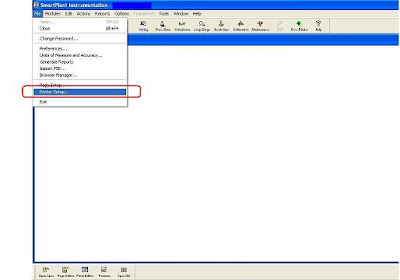
(3) Open specification module and select Report>>Print Specs into PDF File
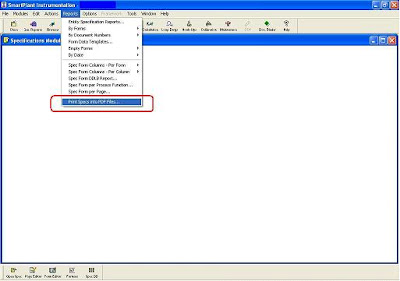
(4) New dialog window will open. Here you need to enter file name, just click browse and then select any pdf file (This is a bug in intools, just select any pdf file you have. Yes, it will prompt you to overwrite, click YES and don’t worry as when it is ready to print to pdf file, new window will come up to enter new file name so your existing file will not be overwritten – see point 7 below). Then click FIND to select the tag numbers.
(5) "Select Entities window" will open, click FIND and choose tag number as required. Multi selection can be done by using CTRL+Click or SHIFT+Click on the tag numbers.

(6) Once finish click OK and it will return to previous window. Click OK and intools will start creating temporary file.
(7) After temporary file (.psr) of all selected tag number has been created, new window will come up. Here you need to enter new file name, so previously selected file name (point 3) will not be overwritten.
(8) Having been entered a new file name, sometimes it will have error message of Acrobat Distiller. Just click OK to continue printing.

(3) Open specification module and select Report>>Print Specs into PDF File

(4) New dialog window will open. Here you need to enter file name, just click browse and then select any pdf file (This is a bug in intools, just select any pdf file you have. Yes, it will prompt you to overwrite, click YES and don’t worry as when it is ready to print to pdf file, new window will come up to enter new file name so your existing file will not be overwritten – see point 7 below). Then click FIND to select the tag numbers.
(5) "Select Entities window" will open, click FIND and choose tag number as required. Multi selection can be done by using CTRL+Click or SHIFT+Click on the tag numbers.

(6) Once finish click OK and it will return to previous window. Click OK and intools will start creating temporary file.
(7) After temporary file (.psr) of all selected tag number has been created, new window will come up. Here you need to enter new file name, so previously selected file name (point 3) will not be overwritten.
(8) Having been entered a new file name, sometimes it will have error message of Acrobat Distiller. Just click OK to continue printing.
If your intools hangs and you do not see this error message, you need to minimize all program windows, open intools only, minimize it then you will see error message. By clicking OK it will continue to print
Read More..
Subscribe to:
Posts (Atom)
